Sunday, May 11, 2008


Tuesday, April 29, 2008
Personality tests
For those who are introspective, love personality tests or just find them fun I have a couple of good sites I've found. I've taken a lot of personality tests and Ansir provides, by far, the most interesting results of all (You can register a profile on Ansir.com here). There is also a book called "3 Sides of You", which includes in-depth explanations of all the different personality types. The book can be found on Amazon.
The other site is called SimilarMinds and it features a variety of personality tests, compatibility tests, intelligence tests and others.
Monday, April 28, 2008
Computer Science Courses
The following courses are available for free as podcasts on iTunes and on the courses' corresponding web sites. They include videos and slides used during the lectures,PDF files, audio recordings and exam sheets. I've found them especially useful and I hope others will benefit from them as well.
- Introduction to Computer Science at Harvard College
- Understanding Computers and the Internet
- Building Dynamic Websites
- XML with Java, Java Servlet, and JSP
- Great Ideas in Computer Science with Java
The website of the lecturer can be found here.
Saturday, April 26, 2008
Introduction to Networking
1.1. History
The idea of networking is probably as old as telecommunications itself. Consider people living in the Stone Age, when drums may have been used to transmit messages between individuals. Suppose caveman A wants to invite caveman B over for a game of hurling rocks at each other, but they live too far apart for B to hear A banging his drum. What are A's options? He could 1) walk over to B's place, 2) get a bigger drum, or 3) ask C, who lives halfway between them, to forward the message. The last option is called networking.
Of course, we have come a long way from the primitive pursuits and devices of our forebears. Nowadays, we have computers talk to each other over vast assemblages of wires, fiber optics, microwaves, and the like, to make an appointment for Saturday's soccer match. In the following description, we will deal with the means and ways by which this is accomplished, but leave out the wires, as well as the soccer part.
We will describe three types of networks in this guide. We will focus on TCP/IP most heavily because it is the most popular protocol suite in use on both Local Area Networks (LANs) and Wide Area Networks (WANs), such as the Internet. We will also take a look at UUCP and IPX. UUCP was once commonly used to transport news and mail messages over dialup telephone connections. It is less common today, but is still useful in a variety of situations. The IPX protocol is used most commonly in the Novell NetWare environment and we'll describe how to use it to connect your Linux machine into a Novell network. Each of these protocols are networking protocols and are used to carry data between host computers. We'll discuss how they are used and introduce you to their underlying principles.
We define a network as a collection of hosts that are able to communicate with each other, often by relying on the services of a number of dedicated hosts that relay data between the participants. Hosts are often computers, but need not be; one can also think of X terminals or intelligent printers as hosts. Small agglomerations of hosts are also called sites.
Communication is impossible without some sort of language or code. In computer networks, these languages are collectively referred to as protocols. However, you shouldn't think of written protocols here, but rather of the highly formalized code of behavior observed when heads of state meet, for instance. In a very similar fashion, the protocols used in computer networks are nothing but very strict rules for the exchange of messages between two or more hosts.
[1]The original spirit of which (see above) still shows on some occasions in Europe.
1.2. TCP/IP Networks
Modern networking applications require a sophisticated approach to carrying data from one machine to another. If you are managing a Linux machine that has many users, each of whom may wish to simultaneously connect to remote hosts on a network, you need a way of allowing them to share your network connection without interfering with each other. The approach that a large number of modern networking protocols uses is called packet-switching. A packet is a small chunk of data that is transferred from one machine to another across the network. The switching occurs as the datagram is carried across each link in the network. A packet-switched network shares a single network link among many users by alternately sending packets from one user to another across that link.
The solution that Unix systems, and subsequently many non-Unix systems, have adopted is known as TCP/IP. When talking about TCP/IP networks you will hear the term datagram, which technically has a special meaning but is often used interchangeably with packet. In this section, we will have a look at underlying concepts of the TCP/IP protocols.
1.2.1. Introduction to TCP/IP Networks
TCP/IP traces its origins to a research project funded by the United States Defense Advanced Research Projects Agency (DARPA) in 1969. The ARPANET was an experimental network that was converted into an operational one in 1975 after it had proven to be a success.
In 1983, the new protocol suite TCP/IP was adopted as a standard, and all hosts on the network were required to use it. When ARPANET finally grew into the Internet (with ARPANET itself passing out of existence in 1990), the use of TCP/IP had spread to networks beyond the Internet itself. Many companies have now built corporate TCP/IP networks, and the Internet has grown to a point at which it could almost be considered a mainstream consumer technology. It is difficult to read a newspaper or magazine now without seeing reference to the Internet; almost everyone can now use it.
For something concrete to look at as we discuss TCP/IP throughout the following sections, we will consider Groucho Marx University (GMU), situated somewhere in Fredland, as an example. Most departments run their own Local Area Networks, while some share one and others run several of them. They are all interconnected and hooked to the Internet through a single high-speed link.
Suppose your Linux box is connected to a LAN of Unix hosts at the Mathematics department, and its name is erdos. To access a host at the Physics department, say quark, you enter the following command:
$ rlogin quark.physics
Welcome to the Physics Department at GMU
(ttyq2) login:
At the prompt, you enter your login name, say andres, and your password. You are then given a shell[1] on quark, to which you can type as if you were sitting at the system's console. After you exit the shell, you are returned to your own machine's prompt. You have just used one of the instantaneous, interactive applications that TCP/IP provides: remote login.
While being logged into quark, you might also want to run a graphical user interface application, like a word processing program, a graphics drawing program, or even a World Wide Web browser. The X windows system is a fully network-aware graphical user environment, and it is available for many different computing systems. To tell this application that you want to have its windows displayed on your host's screen, you have to set the DISPLAY environment variable:
$ DISPLAY=erdos.maths:0.0
$ export DISPLAY
If you now start your application, it will contact your X server instead of quark's, and display all its windows on your screen. Of course, this requires that you have X11 runnning on erdos. The point here is that TCP/IP allows quark and erdos to send X11 packets back and forth to give you the illusion that you're on a single system. The network is almost transparent here.
Another very important application in TCP/IP networks is NFS, which stands for Network File System. It is another form of making the network transparent, because it basically allows you to treat directory hierarchies from other hosts as if they were local file systems and look like any other directories on your host. For example, all users' home directories can be kept on a central server machine from which all other hosts on the LAN mount them. The effect is that users can log in to any machine and find themselves in the same home directory. Similarly, it is possible to share large amounts of data (such as a database, documentation or application programs) among many hosts by maintaining one copy of the data on a server and allowing other hosts to access it.
Of course, these are only examples of what you can do with TCP/IP networks. The possibilities are almost limitless, and we'll introduce you to more as you read on through the book.
We will now have a closer look at the way TCP/IP works. This information will help you understand how and why you have to configure your machine. We will start by examining the hardware, and slowly work our way up.
1.2.2. Ethernets
The most common type of LAN hardware is known as Ethernet. In its simplest form, it consists of a single cable with hosts attached to it through connectors, taps, or transceivers. Simple Ethernets are relatively inexpensive to install, which together with a net transfer rate of 10, 100, or even 1,000 Megabits per second, accounts for much of its popularity.
Ethernets come in three flavors: thick, thin, and twisted pair. Thin and thick Ethernet each use a coaxial cable, differing in diameter and the way you may attach a host to this cable. Thin Ethernet uses a T-shaped “BNC” connector, which you insert into the cable and twist onto a plug on the back of your computer. Thick Ethernet requires that you drill a small hole into the cable, and attach a transceiver using a “vampire tap.” One or more hosts can then be connected to the transceiver. Thin and thick Ethernet cable can run for a maximum of 200 and 500 meters respectively, and are also called 10base-2 and 10base-5. The “base” refers to “baseband modulation” and simply means that the data is directly fed onto the cable without any modem. The number at the start refers to the speed in Megabits per second, and the number at the end is the maximum length of the cable in hundreds of metres. Twisted pair uses a cable made of two pairs of copper wires and usually requires additional hardware known as active hubs. Twisted pair is also known as 10base-T, the “T” meaning twisted pair. The 100 Megabits per second version is known as 100base-T.
To add a host to a thin Ethernet installation, you have to disrupt network service for at least a few minutes because you have to cut the cable to insert the connector. Although adding a host to a thick Ethernet system is a little complicated, it does not typically bring down the network. Twisted pair Ethernet is even simpler. It uses a device called a “hub,” which serves as an interconnection point. You can insert and remove hosts from a hub without interrupting any other users at all.
Many people prefer thin Ethernet for small networks because it is very inexpensive; PC cards come for as little as US $30 (many companies are literally throwing them out now), and cable is in the range of a few cents per meter. However, for large-scale installations, either thick Ethernet or twisted pair is more appropriate. For example, the Ethernet at GMU's Mathematics Department originally chose thick Ethernet because it is a long route that the cable must take so traffic will not be disrupted each time a host is added to the network. Twisted pair installations are now very common in a variety of installations. The Hub hardware is dropping in price and small units are now available at a price that is attractive to even small domestic networks. Twisted pair cabling can be significantly cheaper for large installations, and the cable itself is much more flexible than the coaxial cables used for the other Ethernet systems. The network administrators in GMU's mathematics department are planning to replace the existing network with a twisted pair network in the coming finanical year because it will bring them up to date with current technology and will save them significant time when installing new host computers and moving existing computers around.
One of the drawbacks of Ethernet technology is its limited cable length, which precludes any use of it other than for LANs. However, several Ethernet segments can be linked to one another using repeaters, bridges, or routers. Repeaters simply copy the signals between two or more segments so that all segments together will act as if they are one Ethernet. Due to timing requirements, there may not be more than four repeaters between any two hosts on the network. Bridges and routers are more sophisticated. They analyze incoming data and forward it only when the recipient host is not on the local Ethernet.
Ethernet works like a bus system, where a host may send packets (or frames) of up to 1,500 bytes to another host on the same Ethernet. A host is addressed by a six-byte address hardcoded into the firmware of its Ethernet network interface card (NIC). These addresses are usually written as a sequence of two-digit hex numbers separated by colons, as in aa:bb:cc:dd:ee:ff.
A frame sent by one station is seen by all attached stations, but only the destination host actually picks it up and processes it. If two stations try to send at the same time, a collision occurs. Collisions on an Ethernet are detected very quickly by the electronics of the interface cards and are resolved by the two stations aborting the send, each waiting a random interval and re-attempting the transmission. You'll hear lots of stories about collisions on Ethernet being a problem and that utilization of Ethernets is only about 30 percent of the available bandwidth because of them. Collisions on Ethernet are a normal phenomenon, and on a very busy Ethernet network you shouldn't be surprised to see collision rates of up to about 30 percent. Utilization of Ethernet networks is more realistically limited to about 60 percent before you need to start worrying about it.
1.2.3. Other Types of Hardware
In larger installations, such as Groucho Marx University, Ethernet is usually not the only type of equipment used. There are many other data communications protocols available and in use. All of the protocols listed are supported by Linux, but due to space constraints we'll describe them briefly. Many of the protocols have HOWTO documents that describe them in detail, so you should refer to those if you're interested in exploring those that we don't describe in this book.
At Groucho Marx University, each department's LAN is linked to the campus high-speed “backbone” network, which is a fiber optic cable running a network technology called Fiber Distributed Data Interface (FDDI). FDDI uses an entirely different approach to transmitting data, which basically involves sending around a number of tokens, with a station being allowed to send a frame only if it captures a token. The main advantage of a token-passing protocol is a reduction in collisions. Therefore, the protocol can more easily attain the full speed of the transmission medium, up to 100 Mbps in the case of FDDI. FDDI, being based on optical fiber, offers a significant advantage because its maximum cable length is much greater than wire-based technologies. It has limits of up to around 200 km, which makes it ideal for linking many buildings in a city, or as in GMU's case, many buildings on a campus.
Similarly, if there is any IBM computing equipment around, an IBM Token Ring network is quite likely to be installed. Token Ring is used as an alternative to Ethernet in some LAN environments, and offers the same sorts of advantages as FDDI in terms of achieving full wire speed, but at lower speeds (4 Mbps or 16 Mbps), and lower cost because it is based on wire rather than fiber. In Linux, Token Ring networking is configured in almost precisely the same way as Ethernet, so we don't cover it specifically.
Although it is much less likely today than in the past, other LAN technologies, such as ArcNet and DECNet, might be installed. Linux supports these too, but we don't cover them here.
Many national networks operated by Telecommunications companies support packet switching protocols. Probably the most popular of these is a standard named X.25. Many Public Data Networks, like Tymnet in the U.S., Austpac in Australia, and Datex-P in Germany offer this service. X.25 defines a set of networking protocols that describes how data terminal equipment, such as a host, communicates with data communications equipment (an X.25 switch). X.25 requires a synchronous data link, and therefore special synchronous serial port hardware. It is possible to use X.25 with normal serial ports if you use a special device called a PAD (Packet Assembler Disassembler). The PAD is a standalone device that provides asynchronous serial ports and a synchronous serial port. It manages the X.25 protocol so that simple terminal devices can make and accept X.25 connections. X.25 is often used to carry other network protocols, such as TCP/IP. Since IP datagrams cannot simply be mapped onto X.25 (or vice versa), they are encapsulated in X.25 packets and sent over the network. There is an experimental implementation of the X.25 protocol available for Linux.
A more recent protocol commonly offered by telecommunications companies is called Frame Relay. The Frame Relay protocol shares a number of technical features with the X.25 protocol, but is much more like the IP protocol in behavior. Like X.25, Frame Relay requires special synchronous serial hardware. Because of their similarities, many cards support both of these protocols. An alternative is available that requires no special internal hardware, again relying on an external device called a Frame Relay Access Device (FRAD) to manage the encapsulation of Ethernet packets into Frame Relay packets for transmission across a network. Frame Relay is ideal for carrying TCP/IP between sites. Linux provides drivers that support some types of internal Frame Relay devices.
If you need higher speed networking that can carry many different types of data, such as digitized voice and video, alongside your usual data, ATM (Asynchronous Transfer Mode) is probably what you'll be interested in. ATM is a new network technology that has been specifically designed to provide a manageable, high-speed, low-latency means of carrying data, and provide control over the Quality of Service (Q.S.). Many telecommunications companies are deploying ATM network infrastructure because it allows the convergence of a number of different network services into one platform, in the hope of achieving savings in management and support costs. ATM is often used to carry TCP/IP. The Networking-HOWTO offers information on the Linux support available for ATM.
Frequently, radio amateurs use their radio equipment to network their computers; this is commonly called packet radio. One of the protocols used by amateur radio operators is called AX.25 and is loosely derived from X.25. Amateur radio operators use the AX.25 protocol to carry TCP/IP and other protocols, too. AX.25, like X.25, requires serial hardware capable of synchronous operation, or an external device called a “Terminal Node Controller” to convert packets transmitted via an asynchronous serial link into packets transmitted synchronously. There are a variety of different sorts of interface cards available to support packet radio operation; these cards are generally referred to as being “Z8530 SCC based,” and are named after the most popular type of communications controller used in the designs. Two of the other protocols that are commonly carried by AX.25 are the NetRom and Rose protocols, which are network layer protocols. Since these protocols run over AX.25, they have the same hardware requirements. Linux supports a fully featured implementation of the AX.25, NetRom, and Rose protocols. The AX25-HOWTO is a good source of information on the Linux implementation of these protocols.
Other types of Internet access involve dialing up a central system over slow but cheap serial lines (telephone, ISDN, and so on). These require yet another protocol for transmission of packets, such as SLIP or PPP, which will be described later.
1.2.4. The Internet Protocol
Of course, you wouldn't want your networking to be limited to one Ethernet or one point-to-point data link. Ideally, you would want to be able to communicate with a host computer regardless of what type of physical network it is connected to. For example, in larger installations such as Groucho Marx University, you usually have a number of separate networks that have to be connected in some way. At GMU, the Math department runs two Ethernets: one with fast machines for professors and graduates, and another with slow machines for students. Both are linked to the FDDI campus backbone network.
This connection is handled by a dedicated host called a gateway that handles incoming and outgoing packets by copying them between the two Ethernets and the FDDI fiber optic cable. For example, if you are at the Math department and want to access quark on the Physics department's LAN from your Linux box, the networking software will not send packets to quark directly because it is not on the same Ethernet. Therefore, it has to rely on the gateway to act as a forwarder. The gateway (named sophus) then forwards these packets to its peer gateway niels at the Physics department, using the backbone network, with niels delivering it to the destination machine. Data flow between erdos and quark is shown in Figure 1-1.
Figure 1-1. The three steps of sending a datagram from erdos to quark
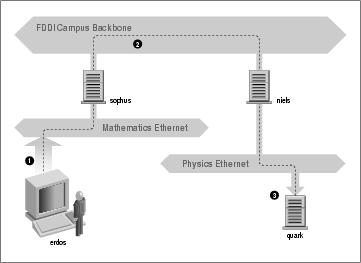
This scheme of directing data to a remote host is called routing, and packets are often referred to as datagrams in this context. To facilitate things, datagram exchange is governed by a single protocol that is independent of the hardware used: IP, or Internet Protocol.
The main benefit of IP is that it turns physically dissimilar networks into one apparently homogeneous network. This is called internetworking, and the resulting “meta-network” is called an internet. Note the subtle difference here between an internet and the Internet. The latter is the official name of one particular global internet.
Of course, IP also requires a hardware-independent addressing scheme. This is achieved by assigning each host a unique 32-bit number called the IP address. An IP address is usually written as four decimal numbers, one for each 8-bit portion, separated by dots. For example, quark might have an IP address of 0x954C0C04, which would be written as 149.76.12.4. This format is also called dotted decimal notation and sometimes dotted quad notation. It is increasingly going under the name IPv4 (for Internet Protocol, Version 4) because a new standard called IPv6 offers much more flexible addressing, as well as other modern features. It will be at least a year after the release of this edition before IPv6 is in use.
You will notice that we now have three different types of addresses: first there is the host's name, like quark, then there are IP addresses, and finally, there are hardware addresses, like the 6-byte Ethernet address. All these addresses somehow have to match so that when you type rlogin quark, the networking software can be given quark's IP address; and when IP delivers any data to the Physics department's Ethernet, it somehow has to find out what Ethernet address corresponds to the IP address.
it's enough to remember that these steps of finding addresses are called hostname resolution, for mapping hostnames onto IP addresses, and address resolution, for mapping the latter to hardware addresses.
1.2.5. IP Over Serial Lines
On serial lines, a “de facto” standard exists known as SLIP, or Serial Line IP. A modification of SLIP known as CSLIP, or Compressed SLIP, performs compression of IP headers to make better use of the relatively low bandwidth provided by most serial links. Another serial protocol is PPP, or the Point-to-Point Protocol. PPP is more modern than SLIP and includes a number of features that make it more attractive. Its main advantage over SLIP is that it isn't limited to transporting IP datagrams, but is designed to allow just about any protocol to be carried across it.
1.2.6. The Transmission Control Protocol
Sending datagrams from one host to another is not the whole story. If you log in to quark, you want to have a reliable connection between your rlogin process on erdos and the shell process on quark. Thus, the information sent to and fro must be split up into packets by the sender and reassembled into a character stream by the receiver. Trivial as it seems, this involves a number of complicated tasks.
A very important thing to know about IP is that, by intent, it is not reliable. Assume that ten people on your Ethernet started downloading the latest release of Netscape's web browser source code from GMU's FTP server. The amount of traffic generated might be too much for the gateway to handle, because it's too slow and it's tight on memory. Now if you happen to send a packet to quark, sophus might be out of buffer space for a moment and therefore unable to forward it. IP solves this problem by simply discarding it. The packet is irrevocably lost. It is therefore the responsibility of the communicating hosts to check the integrity and completeness of the data and retransmit it in case of error.
This process is performed by yet another protocol, Transmission Control Protocol (TCP), which builds a reliable service on top of IP. The essential property of TCP is that it uses IP to give you the illusion of a simple connection between the two processes on your host and the remote machine, so you don't have to care about how and along which route your data actually travels. A TCP connection works essentially like a two-way pipe that both processes may write to and read from. Think of it as a telephone conversation.
TCP identifies the end points of such a connection by the IP addresses of the two hosts involved and the number of a port on each host. Ports may be viewed as attachment points for network connections. If we are to strain the telephone example a little more, and you imagine that cities are like hosts, one might compare IP addresses to area codes (where numbers map to cities), and port numbers to local codes (where numbers map to individual people's telephones). An individual host may support many different services, each distinguished by its own port number.
In the rlogin example, the client application (rlogin) opens a port on erdos and connects to port 513 on quark, to which the rlogind server is known to listen. This action establishes a TCP connection. Using this connection, rlogind performs the authorization procedure and then spawns the shell. The shell's standard input and output are redirected to the TCP connection, so that anything you type to rlogin on your machine will be passed through the TCP stream and be given to the shell as standard input.
1.2.7. The User Datagram Protocol
Of course, TCP isn't the only user protocol in TCP/IP networking. Although suitable for applications like rlogin, the overhead involved is prohibitive for applications like NFS, which instead uses a sibling protocol of TCP called UDP, or User Datagram Protocol. Just like TCP, UDP allows an application to contact a service on a certain port of the remote machine, but it doesn't establish a connection for this. Instead, you use it to send single packets to the destination service—hence its name.
Assume you want to request a small amount of data from a database server. It takes at least three datagrams to establish a TCP connection, another three to send and confirm a small amount of data each way, and another three to close the connection. UDP provides us with a means of using only two datagrams to achieve almost the same result. UDP is said to be connectionless, and it doesn't require us to establish and close a session. We simply put our data into a datagram and send it to the server; the server formulates its reply, puts the data into a datagram addressed back to us, and transmits it back. While this is both faster and more efficient than TCP for simple transactions, UDP was not designed to deal with datagram loss. It is up to the application, a name server for example, to take care of this.
1.2.8. More on Ports
Ports may be viewed as attachment points for network connections. If an application wants to offer a certain service, it attaches itself to a port and waits for clients (this is also called listening on the port). A client who wants to use this service allocates a port on its local host and connects to the server's port on the remote host. The same port may be open on many different machines, but on each machine only one process can open a port at any one time.
An important property of ports is that once a connection has been established between the client and the server, another copy of the server may attach to the server port and listen for more clients. This property permits, for instance, several concurrent remote logins to the same host, all using the same port 513. TCP is able to tell these connections from one another because they all come from different ports or hosts. For example, if you log in twice to quark from erdos, the first rlogin client will use the local port 1023, and the second one will use port 1022. Both, however, will connect to the same port 513 on quark. The two connections will be distinguished by use of the port numbers used at erdos.
This example shows the use of ports as rendezvous points, where a client contacts a specific port to obtain a specific service. In order for a client to know the proper port number, an agreement has to be reached between the administrators of both systems on the assignment of these numbers. For services that are widely used, such as rlogin, these numbers have to be administered centrally. This is done by the IETF (Internet Engineering Task Force), which regularly releases an RFC titled Assigned Numbers (RFC-1700). It describes, among other things, the port numbers assigned to well-known services. Linux uses a file called /etc/services that maps service names to numbers.
It is worth noting that although both TCP and UDP connections rely on ports, these numbers do not conflict. This means that TCP port 513, for example, is different from UDP port 513. In fact, these ports serve as access points for two different services, namely rlogin (TCP) and rwho (UDP).
1.2.9. The Socket Library
In Unix operating systems, the software performing all the tasks and protocols described above is usually part of the kernel, and so it is in Linux. The programming interface most common in the Unix world is the Berkeley Socket Library. Its name derives from a popular analogy that views ports as sockets and connecting to a port as plugging in. It provides the bind call to specify a remote host, a transport protocol, and a service that a program can connect or listen to (using connect, listen, and accept). The socket library is somewhat more general in that it provides not only a class of TCP/IP-based sockets (the AF_INET sockets), but also a class that handles connections local to the machine (the AF_UNIX class). Some implementations can also handle other classes, like the XNS (Xerox Networking System) protocol or X.25.
In Linux, the socket library is part of the standard libc C library. It supports the AF_INET and AF_INET6 sockets for TCP/IP and AF_UNIX for Unix domain sockets. It also supports AF_IPX for Novell's network protocols, AF_X25 for the X.25 network protocol, AF_ATMPVC and AF_ATMSVC for the ATM network protocol and AF_AX25, AF_NETROM, and AF_ROSE sockets for Amateur Radio protocol support. Other protocol families are being developed and will be added in time.
Notes
[1] The shell is a command-line interface to the Unix operating system. It's similar to the DOS prompt in a Microsoft Windows environment, albeit much more powerful.
[2] The Ethernet FAQ at http://www.faqs.org/faqs/LANs/ethernet-faq/ talks about this issue, and a wealth of detailed historical and technical information is available at Charles Spurgeon's Ethernet web site at http://wwwhost.ots.utexas.edu/ethernet/.
1.3. UUCP Networks
Unix-to-Unix Copy (UUCP) started out as a package of programs that transferred files over serial lines, scheduled those transfers, and initiated execution of programs on remote sites. It has undergone major changes since its first implementation in the late seventies, but it is still rather spartan in the services it offers. Its main application is still in Wide Area Networks, based on periodic dialup telephone links.
UUCP was first developed by Bell Laboratories in 1977 for communication between their Unix development sites. In mid-1978, this network already connected over 80 sites. It was running email as an application, as well as remote printing. However, the system's central use was in distributing new software and bug fixes. Today, UUCP is not confined solely to the Unix environment. There are free and commercial ports available for a variety of platforms, including AmigaOS, DOS, and Atari's TOS.
One of the main disadvantages of UUCP networks is that they operate in batches. Rather than having a permanent connection established between hosts, it uses temporary connections. A UUCP host machine might dial in to another UUCP host only once a day, and then only for a short period of time. While it is connected, it will transfer all of the news, email, and files that have been queued, and then disconnect. It is this queuing that limits the sorts of applications that UUCP can be applied to. In the case of email, a user may prepare an email message and post it. The message will stay queued on the UUCP host machine until it dials in to another UUCP host to transfer the message. This is fine for network services such as email, but is no use at all for services such as rlogin.
Despite these limitations, there are still many UUCP networks operating all over the world, run mainly by hobbyists, which offer private users network access at reasonable prices. The main reason for the longtime popularity of UUCP was that it was very cheap compared to having your computer directly connected to the Internet. To make your computer a UUCP node, all you needed was a modem, a working UUCP implementation, and another UUCP node that was willing to feed you mail and news. Many people were prepared to provide UUCP feeds to individuals because such connections didn't place much demand on their existing network.
We cover the configuration of UUCP in a chapter of its own later in the book, but we won't focus on it too heavily, as it's being replaced rapidly with TCP/IP, now that cheap Internet access has become commonly available in most parts of the world.
1.4. Linux Networking
As it is the result of a concerted effort of programmers around the world, Linux wouldn't have been possible without the global network. So it's not surprising that in the early stages of development, several people started to work on providing it with network capabilities. A UUCP implementation was running on Linux almost from the very beginning, and work on TCP/IP-based networking started around autumn 1992, when Ross Biro and others created what has now become known as Net-1.
After Ross quit active development in May 1993, Fred van Kempen began to work on a new implementation, rewriting major parts of the code. This project was known as Net-2. The first public release, Net-2d, was made in the summer of 1993 (as part of the 0.99.10 kernel), and has since been maintained and expanded by several people, most notably Alan Cox.[1] Alan's original work was known as Net-2Debugged. After heavy debugging and numerous improvements to the code, he changed its name to Net-3 after Linux 1.0 was released. The Net-3 code was further developed for Linux 1.2 and Linux 2.0. The 2.2 and later kernels use the Net-4 version network support, which remains the standard official offering today.
The Net-4 Linux Network code offers a wide variety of device drivers and advanced features. Standard Net-4 protocols include SLIP and PPP (for sending network traffic over serial lines), PLIP (for parallel lines), IPX (for Novell compatible networks) Appletalk (for Apple networks) and AX.25, NetRom, and Rose (for amateur radio networks). Other standard Net-4 features include IP firewalling, IP accounting and IP Masquerade. IP tunnelling in a couple of different flavors and advanced policy routing are supported. A very large variety of Ethernet devices is supported, in addition to support for some FDDI, Token Ring, Frame Relay, and ISDN, and ATM cards.
Additionally, there are a number of other features that greatly enhance the flexibility of Linux. These features include an implementation of the SMB filesystem, which interoperates with applications like lanmanager and Microsoft Windows, called Samba, written by Andrew Tridgell, and an implementation of the Novell NCP (NetWare Core Protocol).[2]
1.4.1. Different Streaks of Development
There have been, at various times, varying network development efforts active for Linux.
Fred continued development after Net-2Debugged was made the official network implementation. This development led to the Net-2e, which featured a much revised design of the networking layer. Fred was working toward a standardized Device Driver Interface (DDI), but the Net-2e work has ended now.
Yet another implementation of TCP/IP networking came from Matthias Urlichs, who wrote an ISDN driver for Linux and FreeBSD. For this driver, he integrated some of the BSD networking code in the Linux kernel. That project, too is no longer being worked on.
There has been a lot of rapid change in the Linux kernel networking implementation, and change is still the watchword as development continues. Sometimes this means that changes also have to occur in other software, such as the network configuration tools. While this is no longer as large a problem as it once was, you may still find that upgrading your kernel to a later version means that you must upgrade your network configuration tools, too. Fortunately, with the large number of Linux distributions available today, this is a quite simple task.
The Net-4 network implementation is now quite mature and is in use at a very large number of sites around the world. Much work has been done on improving the performance of the Net-4 implementation, and it now competes with the best implementations available for the same hardware platforms. Linux is proliferating in the Internet Service Provider environment, and is often used to build cheap and reliable World Wide Web servers, mail servers, and news servers for these sorts of organizations. There is now sufficient development interest in Linux that it is managing to keep abreast of networking technology as it changes, and current releases of the Linux kernel offer the next generation of the IP protocol, IPv6, as a standard offering.
1.4.2. Where to Get the Code
It seems odd now to remember that in the early days of the Linux network code development, the standard kernel required a huge patch kit to add the networking support to it. Today, network development occurs as part of the mainstream Linux kernel development process. The latest stable Linux kernels can be found on ftp.kernel.org in /pub/linux/kernel/v2.x/, where x is an even number. The latest experimental Linux kernels can be found on ftp.kernel.org in /pub/linux/kernel/v2.y/, where y is an odd number. There are Linux kernel source mirrors all over the world. It is now hard to imagine Linux without standard network support.
1.5. Maintaining Your System
Throughout this book, we will mainly deal with installation and configuration issues. Administration is, however, much more than that—after setting up a service, you have to keep it running, too. For most services, only a little attendance will be necessary, while some, like mail and news, require that you perform routine tasks to keep your system up to date. We will discuss these tasks in later chapters.
The absolute minimum in maintenance is to check system and per-application log files regularly for error conditions and unusual events. Often, you will want to do this by writing a couple of administrative shell scripts and periodically running them from cron. The source distributions of some major applications, like inn or C News, contain such scripts. You only have to tailor them to suit your needs and preferences.
The output from any of your cron jobs should be mailed to an administrative account. By default, many applications will send error reports, usage statistics, or log file summaries to the root account. This makes sense only if you log in as root frequently.
However carefully you have configured your site, Murphy's law guarantees that some problem will surface eventually. Therefore, maintaining a system also means being available for complaints. Usually, people expect that the system administrator can at least be reached via email as root, but there are also other addresses that are commonly used to reach the person responsible for a specific aspect of maintenence. For instance, complaints about a malfunctioning mail configuration will usually be addressed to postmaster, and problems with the news system may be reported to newsmaster or usenet. Mail to hostmaster should be redirected to the person in charge of the host's basic network services, and the DNS name service if you run a name server.
1.5.1. System Security
Another very important aspect of system administration in a network environment is protecting your system and users from intruders. Carelessly managed systems offer malicious people many targets. Attacks range from password guessing to Ethernet snooping, and the damage caused may range from faked mail messages to data loss or violation of your users' privacy. We will mention some particular problems when discussing the context in which they may occur and some common defenses against them.
This section will discuss a few examples and basic techniques for dealing with system security. Of course, the topics covered cannot treat all security issues you may be faced with in detail; they merely serve to illustrate the problems that may arise. Therefore, reading a good book on security is an absolute must, especially in a networked system.
System security starts with good system administration. This includes checking the ownership and permissions of all vital files and directories and monitoring use of privileged accounts. The COPS program, for instance, will check your file system and common configuration files for unusual permissions or other anomalies. It is also wise to use a password suite that enforces certain rules on the users' passwords that make them hard to guess. The shadow password suite, for instance, requires a password to have at least five letters and to contain both upper- and lowercase numbers, as well as non-alphabetic characters.
When making a service accessible to the network, make sure to give it “least privilege”; don't permit it to do things that aren't required for it to work as designed. For example, you should make programs setuid to root or some other privileged account only when necessary. Also, if you want to use a service for only a very limited application, don't hesitate to configure it as restrictively as your special application allows. For instance, if you want to allow diskless hosts to boot from your machine, you must provide Trivial File Transfer Protocol (TFTP) so that they can download basic configuration files from the /boot directory. However, when used unrestrictively, TFTP allows users anywhere in the world to download any world-readable file from your system. If this is not what you want, restrict TFTP service to the /boot directory.[1]
You might also want to restrict certain services to users from certain hosts, say from your local network. tcpd, which does this for a variety of network applications.
Another important point is to avoid “dangerous” software. Of course, any software you use can be dangerous because software may have bugs that clever people might exploit to gain access to your system. Things like this happen, and there's no complete protection against it. This problem affects free software and commercial products alike.[2] However, programs that require special privilege are inherently more dangerous than others, because any loophole can have drastic consequences.[3] If you install a setuid program for network purposes, be doubly careful to check the documentation so that you don't create a security breach by accident.
Another source of concern should be programs that enable login or command execution with limited authentication. The rlogin, rsh, and rexec commands are all very useful, but offer very limited authentication of the calling party. Authentication is based on trust of the calling host name obtained from a name server (we'll talk about these later), which can be faked. Today it should be standard practice to disable the r commands completely and replace them with the ssh suite of tools. The ssh tools use a much more reliable authentication method and provide other services, such as encryption and compression, as well.
You can never rule out the possibility that your precautions might fail, regardless of how careful you have been. You should therefore make sure you detect intruders early. Checking the system log files is a good starting point, but the intruder is probably clever enough to anticipate this action and will delete any obvious traces he or she left. However, there are tools like tripwire, written by Gene Kim and Gene Spafford, that allow you to check vital system files to see if their contents or permissions have been changed. tripwire computes various strong checksums over these files and stores them in a database. During subsequent runs, the checksums are recomputed and compared to the stored ones to detect any modifications.
Notes
There have been commercial Unix systems (that you have to pay lots of money for) that came with a setuid-root shell script, which allowed users to gain root privilege using a simple standard trick.
In 1988, the RTM worm brought much of the Internet to a grinding halt, partly by exploiting a gaping hole in some programs including the sendmail program. This hole has long since been fixed.
All the information is gathered from Linux Network Administrators Guide
You can find more information at Internet FAQ Archives - Online Education
Introduction to Computers
Welcome to the wonderful world of computing! This help file presumes that you have little or no experience with the device commonly known as the PC (personal computer). Hopefully, this resource will aid you in some of the basic activities that are commonly performed with a PC.
This tutorial is divided into the following sections:
- 1.The Parts of a Computer
- 2.Computer Terminology
- 3.Hooking Up a Computer
- 4.Disk Drives
- 5.Disk Utilities
- 6.Using the Mouse
- 7.Care and Feeding of your Computer
-
1. The Parts a Computer
A personal computer can take on many guises. The most prevalent type of computer available in schools is the IBM-compatible model. Some schools opt for the Macintosh platform which can be an "all-in-one" unit or a modular unit. Modular units usually consist of the following separate components:
- a. The Computer
- b. The Monitor
- c. The Keyboard
- d. The Mouse
- e. The Floppy Diskette Drive
- f. The CD-ROM Drive
- g. Peripherals
-
a. The Actual Computer
Your "computer" is a collection of devices that function as a unit. The most basic collection includes a Computer CPU, a Monitor, a Keyboard, and a Mouse. The Computer CPU is normally a rectangular box that sits on your desktop (called a "Desktop Case") or next to your knee under the desk (called a "Tower Case"). The computer's CPU is actually a small electronic device inside the case but the term is often used to refer to the whole collection of electronics inside the box.
-
b. The Monitor
The Computer Monitor is the computer user's window into the workings of the computer. It consists of a television picture tube that had been modified to accept the type of video signal created by the computer's electronics. Conventional televisions can be used as computer monitors if a translation device is used to connect them. The picture quality leaves something to be desired.
-
c. The Keyboard
The Keyboard is the primary input device used to communicate with the computer. A computer keyboard closely resembles a conventional typewriter keyboard with the addition of numerous keys that are used specifically for computing functions.
-
d. The Mouse
Named for the resemblance of the wire coming out of it and a mouse's tail, the mouse was introduced to computing in the early 1980's when Macintosh created its graphical user interface (GUI). The mouse is another input device used to point at objects on the computer monitor and select them. Using the mouse and keyboard in combination allows the computer user substantial latitude in how to accomplish a wide variety of tasks.
-
e. The Floppy Diskette Drive
Once the most advanced of storage devices, floppy diskettes are normally used a temporary storage containers or transportation media for data. A standard floppy diskette can hold 1.44 MB of computer data. This amounts to a rather large number of pages if translated to the paper standard for textual information. Computer diskettes are not as reliable or fast as the internal storage drives on the computer. They are also the primary vector of virus infection in the computer world.
-
f. The CD-ROM Drive
This modern miracle gained prominence in the late 1980's and has become the primary distribution medium for software to consumers. The Compact Disk-Read Only Memory (CD-ROM) disk itself is a collection of concentric circles containing millions of pits and plateaus which correspond to on/off bits of data. The disk is read with an optical laser similar to the one used to scan your groceries at the supermarket. Most disks of this kind are "Read Only" meaning that the computer can retrieve information from the disk, but cannot place information on it. New developments have improved this technology to allow writing and rewriting data to the disk. A different kind of hardware mechanism is needed to employ this innovation.
-
g. Computer Peripherals
Computer peripherals are any electronic devices that can be hooked up to a computer other than the standard input-output devices (monitor, keyboard,mouse). Peripheral devices include speakers, microphones, printers, scanners, digital cameras, plotters, and modems. Peripherals often require special software packages called "drivers". These drivers are usually included with the peripheral at purchase time.
-
2. Computer Terminology
Like all things man-made, computers have evolved a lexicon all their own. The following incomplete list should help alleviate misunderstandings of computer-related terms:
- CD-ROM: Another acronym. This one stands for Compact Disk-Read Only Memory. CD-ROM disks are becoming the standard for delivering programs from the software developer to the computer user. CD-ROM's come in a variety of flavors based on the language they are written in (PC, Mac, or Unix). PC's cannot read a Mac CD-ROM, but Macs can read PC CD-ROMS.
- CPU: The brain of the computer. This is located on a circuit board inside the desktop or tower computer case. This component has terms associated with it such as "486", "Pentium" and "Celeron". Most of the CPU's are manufactured by a company called Intel. They are the Microsoft of the hardware world.
- Data: Computer food. Data can be numbers, letters, symbols, mathematical expressions, mouse clicks, or button presses. The CPU translates all this activity to series of zeroes and ones and then performs magic.
- Drivers: Drivers are software packages that are needed to run certain peripheral devices. Printers, monitors, scanners, and network cards all require software drivers so that the computer knows how to communicate and control the device.
- 486: An older CPU that was constructed at the beginning of the Windows 95 revolution. This CPU works great if you are running MS-DOS or Windows 3.1. In general, this is one of the things that should be considered when purchasing a computer.
- Hard Disk Drive (HDD): This is the internal magnetic storage device housed inside the computer case. These come in a variety of sizes, measured in how many bits of information they can contain. A bit of information equals either zero (0) or one (1). To a computer, this is equivalent to turning a light switch off (0) or on (1). Computers operate on bits in groups of 8, called a byte. Every byte contains 8 bits. Bits and bytes can be stored magnetically on material that resembles cassette or 8-track recording tape. The magnetic material stores information as sequences of the digits "0" and "1" (hence the name digital storage). Since it takes many bytes to store such things as letters, words, and sentences, the amount of information that a Hard Drive can store is measured in multiples of 1000-bytes, 1,000,000 bytes, or 1,000,000,000 bytes. Terms such as kilobyte (1000 bytes or 1KB), megabyte (1,000,000 bytes or 1MB), and gigabyte (1,000,000,000 bytes or 1GB) have evolved to represent these storage capacities. When you purchase a computer, get as large a Hard Drive as you can afford. The standard in 1998 was between 4GB and 8GB. The Hard Disk Drive is often referred to as the "C:" drive.
- Floppy Diskette: The floppy diskette is a removable storage device that is used by the Floppy Diskette Drive (also known as the A: drive or FDD). This storage device is capable of holding 1,440,000 bytes (1.44MB) of data. The Floppy Diskette is inserted and removed from a slotted opening on the front of the computer case.
- Keyboard: The main tool to get information into the computer and the most common way to tell the computer what you want it to do. Most keyboards have the same arrangement of keys as a typical typewriter keyboard. Computer keyboards have additional keys that perform computer-specific functions.
- Modem: A telecommunications peripheral device that allows computer to communicate with one another via conventional telephone lines. Modems are required for home computers to access the Internet or to send and receive facsimile transmissions (FAX). Modems are rated by their speed in moving data from the computer to the telephone line. This speed is measured in bits per second (bps). Standard modern modems are rated at 28,800 bps, 33,600 bps and 56,400 bps.
- Monitor: The "Television" screen that allows you to see what the computer is doing. Many newcomers to computing mistakenly think of the monitor as the computer itself. Computers can operate without a monitor, but computer users cannot.
- Motherboard: The circuit board on which most of the major electronic components are situated. Most manufacturers integrate cable attachment ports on the back-end of the motherboard. They also include slots so that owners can add their own cable attachment ports. The slots are designed to accept cards. These are normally found near the back of the computer case.
- Mouse: A common input device used to tell a computer what it needs to do. With the invention of the Macintosh and Windows operating systems, computer users needed a device to point at objects on the screen and select them.
- MS-DOS: An older operating system that powered personal computers through their beginning years. Prior to the development of the graphics-oriented Macintosh and Windows operating systems, this system relied on typing commands one line at a time to tell the computer what you wanted it to do. This system is still in use in the Windows family of software and still has many practical uses. Windows 3.1 relies on MS-DOS to operate. MS-DOS stands for Microsoft-Disk Operating System.
- Network Card: A card that can be installed in one of the motherboard slots to give the computer the ability to talk to other computers with similar cards. A collection of similarly equipped computers connected by specially designed cables is known as a network. The mechanism (including languages and protocols) used to communicate on a network are varied, but the most common networking designs in use are Ethernet and Token Ring.
- Operating System Software (OS): The instructions that allow the computer to start working and permit it to run other programs. The major OS software types include MS-DOS, Windows 3.1, Windows 95, Windows NT, Macintosh, UNIX, and LINUX. The most popular OS in use at present is Windows 95. Most computers come with one of these pre-installed.
- Platform: The computer operating system and/or architecture. Computers that are capable of running MS-DOS, Windows 3.1 or Windows95/NT operating system software typically have the Intel 486/Pentium CPU. Computers running the Macintosh operating system software have a Motorola 68xxx/Power PC CPU. For the most part, these platforms are incompatible as they have different rules and instructions for performing their tasks.
- Pentium III - Pentium 4: Faster, larger CPU devices that are designed to allow more computing instructions to occur per second. Most computers manufactured in the past 3 to 4 years contain this device.
- Peripheral Device: Any device that is connected to the computer in addition to the basic CPU-Monitor-Keyboard-Mouse configuration. External speakers, microphones, joysticks, printers, and scanners are examples of peripherals.
- Printer: A peripheral device that allows the computer user to produce paper copies of the information processed by the computer. Common home printers spray ink on paper and are called ink-jet printers. Office and school printers are typically laser printers which work on the same principle as a xerographic copy machine, using electrostatic charges and toner cartridges to place information on paper.
- Program: A complex set of instructions that allow the computer user to process data. Common programs include word-processing, spreadsheets, databases, drawing and painting, Internet tools, and games. Programs are necessary for computers to be useful to humans.
- RAM: This acronym stands for Random Access Memory. RAM is commonly called "memory". Memory is measured in megabytes (MB) and usually comes in multiples of 2 or 4. The more RAM that a computer has, the better it can carry out instructions. It is recommended that a new computer have 32 MB, 64MB, or 128MB of RAM.
-
3. Hooking Up a Computer
Computers are getting relatively easy to hook up. The computer owner used to have to keep a technical manual at his or her side to make sure which wire connects to which port. Each of the peripheral devices has a cable that needs to be connected to the back of the computer. Most of these cables have a special connector type that is designed to fit one and only one type of port. You may hear or read about "serial" ports, "parallel" ports, 25-pin connectors, 9-pin connectors and the like. Each of these descriptors refers to a special wiring configuration. Each of the connectors normally fits one and only one port on the back of the computer.
Both the CPU housing and the monitor will have conventional household power cords. These are the 3-prong variety and it is strongly recommended that you plug the computer and monitor into a grounded outlet instead of using the 2-prong converter (or just cutting the grounding prong off). It is also recommended that you purchase a high quality, grounded, multi-outlet power strip that offers a good measure of surge protection. During an electrical storm, the best thing you can do for your computer is to unplug it from the power source. Most insurance claims on electrically damaged computer equipment results from lightning damage that originated from the telephone line connected to the modem. It is a wise computer owner who not only "unplugs" his computer, but disconnects the phone line, as well.
Most new computers come with simple, easy to follow instructions for connecting the cables. If you ever plan to detach the cables and move the computer to a new location, it would be wise to get out a few bottles of colored nail polish and paint some identifying marks on the cables and above the ports so that you can easily tell which wire belongs in which socket. Many manufacturers are beginning to color-code their connectors to make setting up the computer easier.
-
4. Disk Drives
In the early days of computing, information storage was done on magnetic tape, similar to VCR or cassette tape. The disadvantage of using tape as a storage device was that it could not be accessed randomly. In other words, if information was stored midway on the tape, the tape would have to be forwarded or rewound to that position before the information could be retrieved. The first Radio Shack TRS-80's could have a cassette tape player hooked to them and could then store information. It was necessary for the user to write down the tape recorder's counter position whenever a new set of data was stored.
This primitive means of storing and retrieving data was soon replaced by the 5.25-inch floppy disk. The wonderful thing about this disk was that the computer itself kept track of where the information was stored and could access information from anywhere on the disk very rapidly. The large floppy disk (named because of its flexibility) was replaced by the 3.5-inch plastic shielded diskette which proved to be more durable and small enough to fit in a shirt pocket. The large floppy disk could hold about 360 KB of information while the diskette could hold up to 1.44 MB. New diskette drive designs (called Superdrives) allow as much as 120 MB of storage on a single disk!
The workhorse of the modern PC is the hard disk drive (HDD). A hard disk drive consists of a set of stacked metal platters coated on both sides with a magnetic recording material. The platters are read by magnetic reading heads, each resembling the tone-arm of a record player. The more platters and reading heads built into the drive, the larger the storage capacity. The HDD stores the operating instructions needed by the computer to start up and run properly. It is vital to keep the HDD working properly in order for the computer to remain healthy. The dreaded "Computer Crash" normally occurs whenever the hard disk drive fails to work. Maintaining the integrity of data on a HDD has become an industry in itself.
Computers can have more than one HDD and more than one diskette drive. The HDD is normally referred to as the "C: Drive" while the diskette drive is commonly referred to as the "A: Drive". A second diskette drive is usually designated as the "B: Drive". Additional hard disk drives will be given different drive labels, such as "F: Drive", "G: Drive", etc. On a network, other storage devices can be "mapped" and used as storage devices by the local computer. These drives will also be assigned letters.
Other drives attached to the computer (such as CD-ROM Drives, Zip Drives, Jaz Drives and SCSI Drives) are assigned additional drive letters so that the computer operator and the computer can keep track of where the data will be coming from or going to. The more complex the machine, the more complex its maintenance.
-
5. Disk Utilities
-
Checkdisk:
Checkdisk is a holdover from the MS-DOS days of computer. To run this command, click the Start Button, select the word "Run" and type the following in the dialogue box:

Clicking OK will tell the computer to take a look at your Hard Disk and build a brief report of the most basic statistics similar to the graphic below:

-
Scandisk:
Scandisk is an MS-DOS utility that is incorporated into the Windows 95 operating system. To run Scandisk, you can click the Start Button, then choose Run, and then type in the word "Scandisk" (without the quotes). Clicking OK will bring up a dialogue box similar to the one shown below.
Clicking Start will tell the computer to take a look at your Hard Disk and test it for physical imperfections and data errors. The scan can be done in Standard mode or Thorough mode and can be instructed to Automatically fix errors. This utility very useful in maintaining a healthy hard drive.

-
Defragmenter (Optimizing):
After a disk has been used for a while, numerous writes and rewrites and erasures can separate data into bits and pieces scattered throughout a disk. Defragmenting or Optimizing a disk is a technique that takes pieces of information that have been written to separate regions of the disk and consolidates them into contiguous data units.
To run the defragmentation routine, click the Start Button, select Run and type in the word "defrag" (without the quotes). Clicking the OK button will produce the following dialogue box:

Selecting OK will tell the computer to take a look at the disk and see whether it needs to have this operation done or not. After a short time, the computer will return a screen that resembles the following:

If you elect to defragment, be prepared to wait and wait and wait. The larger the drive, the longer the process. Defragmenting is recommended if you create and erase lots of data.
-
Formatting:
In order to get a disk or diskette ready for use, you sometimes have to format it. Formatting involves erasing all the data from the disk, checking it for physical errors, removing bad sectors from the disk map, and generally preparing the disk to accept data from the particular computer system that it is being prepared for. There is no physical difference between a diskette that is used with a Macintosh, a PC, or a Unix computer. The difference lies in the way that disk is prepared or formatted.
To format a diskette, insert the diskette into the diskette drive slot, click on the Start Button, and select Run. In the dialogue box that appears, type the following: "format a:" (without the quotes). This will produce the screen below:

Pressing the ENTER key on the keyboard will begin the process of preparing the diskette for use on your computer. It takes approximately one minute to format a standard 3.5-inch diskette. All disks, at some time or other, are formatted prior to using them on a computer system. Be careful not to format your Hard Disk Drive unless you absolutely know what you are doing. Formatting the C: Drive will literally bring you to tears. This is best left to the experts and only whenever all else fails.
-
Partitioning:
Hard Disks can be subdivided into smaller virtual areas (partitions) by means of partitioning. Whenever a hard disk is formatted, the formatting utility creates only a single disk partition. A DOS utility called FDISK can be used to subdivide a hard disk drive into sections. The purpose of doing this is to protect portions of the disk from a software crash. If the operating system is stored on one partition of the disk and the applications on another, if the operating system crashes and becomes corrupt, the software applications won't be affected by measure used to correct the operating system problems. The OS partition can be reformatted and the software reinstalled without affecting the software applications and data stored on the other partition.
Partitioning is something that is done by experienced users and should not be experimented with on your primary hard disk. The FDISK utility is a powerful tool. One of its most beneficial uses is to restore the Master Boot Partition (MBR) on a hard disk that has forgotten how to read its data. Some viruses attack the MBR and render the computer useless. If the user is able to boot from a diskette and read the hard drive from the MS-DOS prompt, then the FDISK command can be used to restore the MBR and bring the computer back to life. The command is "FDISK /MBR" (without the quotes). Use this command only when warranted.
-
6. Using the Mouse
Using the mouse takes a bit of hand-eye coordination. The mouse is set up to be used by right-handed people and is traditionally placed on the right side of the keyboard. A PC-based mouse will have 2 or 3 buttons while a Macintosh mouse will have only one. There is a ball inside the bottom of the mouse that rolls whenever you glide the mouse across a surface. As the ball rolls, it sends instructions to the computer telling it where to place the arrow on the computer screen.
Most of the time, the mouse is placed on a smooth, rubber-backed surface called a mousepad. While not necessary, a mousepad can make the movement of the mouse smoother and easier. The mouse ball can pick up dirt, dust, and oils from the surface that it is gliding over. These contaminants then gum up the internal rollers and cause the mouse to work improperly. Removing the ball and cleaning the rollers is a routine maintenance procedure. Keeping the mousepad clean also helps.
When the mouse is rolled across the table, the arrow on the screen moves in the same direction. If you move the mouse to the right, the arrow moves to the right. If you move the mouse forward, the arrow moves upward. Practice is the only way to become acclimated to using the mouse. If you run out of room on the mousepad or desktop, simply lift the mouse off the table and place it back in the center of your work area. As long as the mouseball is not touching a surface, the arrow won't move.
The mouse is used to point at and select items. Pointing involves moving the mouse until the arrow tip lies on top of the item on the screen that you wish to work with. Selecting involves clicking the left mouse button. There are two kinds of "clicks" . . . "single-clicks" and "double-clicks". Single-clicking (clicking the left button once) is used to select objects and make them active. Double-clicking (clicking the left button twice in rapid succession) is used to launch programs and cause computer actions. The general rule of thumb is, "if single-clicking doesn't work, try double-clicking".
Windows 95/98/NT makes use of the right button on the mouse. One of the most helpful tools that was included in the Windows95/98/NT OS was the ability to right-click on all kinds of objects to bring up choices of things that can be done with those objects. Right-clicking will make your computing tasks much easier to accomplish.
-
7. Care and Feeding of Your Computer
To keep your computer running smoothly and to ensure that it has a long and productive life, follow these tips.
- Keep the computer away from heat sources (like radiators and heat registers). Heat is a computer's enemy.
- There is a fan built into the back of the CPU case. Keep this unobstructed and clean. A vacuum cleaner nozzle with a brush attachment is a useful fan cleaning tool
- Don't spill liquids on any part of the computer. Liquids spilled on the keyboard or mouse might cause all kinds of electrical problems.
- Clean the keyboard with a vacuum cleaner nozzle equipped with a brush tool.
- Periodically clean the air vents on the side and back of the monitor with the vacuum brush.
- Keep the monitor screen clean with a soft cloth. Use no detergents, chemicals or soaps. It works best if you clean the monitor when it is off. Otherwise, static electricity can compete with your cloth for the dust and grime.
- Wipe off the keyboard keys with a soft cloth dampened with rubbing alcohol or other mild cleanser. Washing your hands before using the keyboard will keep it cleaner. Eating greasy finger foods while using the computer is not recommended.
- About once a year, unhook the CPU case, take it outside (on a nice clear warm day), remove the case cover and take a look inside. If it has accumulated a lot of dust, cobwebs, and grit, you might want to invest in a can of compressed air and give it a good blast to clean it. Unless you know what's what, you shouldn't probe around with your fingers. Static discharges can zap sensitive electronic components.
Friday, April 25, 2008
Welcome everyone
So, this is going to be our first try at blogging as a team. As the name suggests this blog is related to everything worldly.
The first post is almost certainly the most difficult one. I'll start with noting that our intentions are to provide a friendly help desk for anyone who has a difficulty at hand and needs help regarding anything or for anyone looking for general or specific information. We are highly motivated to organize our blog in a manner which will cooperate with our users' needs and make it easy for them to feel comfortable and be able to find what they are looking for in a minimum time.
Our main goal is to cover the novice users who are still uncertain where they should turn for help. As for the more experienced users, we'll do our best to provide up-to-date information and spare time and efforts. In no time, we'll be ready with our well structured reference library.
The first post is almost certainly the most difficult one. I'll start with noting that our intentions are to provide a friendly help desk for anyone who has a difficulty at hand and needs help regarding anything or for anyone looking for general or specific information. We are highly motivated to organize our blog in a manner which will cooperate with our users' needs and make it easy for them to feel comfortable and be able to find what they are looking for in a minimum time.
Our main goal is to cover the novice users who are still uncertain where they should turn for help. As for the more experienced users, we'll do our best to provide up-to-date information and spare time and efforts. In no time, we'll be ready with our well structured reference library.
Subscribe to:
Posts (Atom)





